
Did you know that WordPress can create duplicate versions of your content without you ever realizing it? Every blog post you publish can spawn several extra URLs, which are near-identical copies you never meant to create. And over time, they hurt your SEO by splitting your ranking signals across pages you don’t even want to rank.
When auditing a website, it’s common to find dozens or even hundreds of these duplicate URLs. That’s because category archives, tag pages, attachment URLs, and author archives are all generating thin versions of your content that compete with your original posts.
In this guide, I’ll walk through every common source of duplicate content, how to detect it, and exactly how to fix it based on my experience helping WordPress sites recover their SEO rankings.
TL;DR: I’ll show you exactly how to find and fix duplicate content issues on your WordPress website. You’ll learn how to clean up messy category archives, merge competing blog posts, and use canonical tags to tell Google exactly which pages to rank. I’ll also show you how to safely automate the technical steps using beginner-friendly tools like All in One SEO, so you don’t have to touch a single line of code.
What Is Duplicate Content in WordPress?
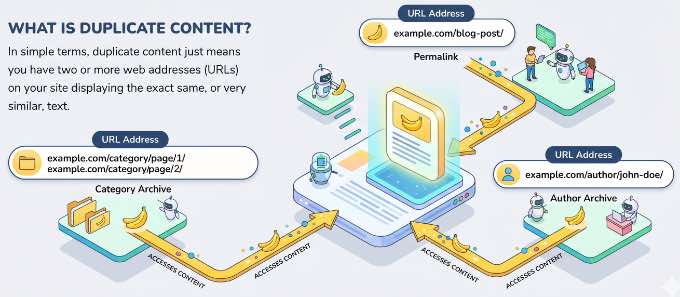
In simple terms, duplicate content just means you have two or more web addresses (URLs) on your website displaying the exact same, or very similar, text.
The reason this causes SEO headaches is that it confuses search engines like Google. When Google finds identical pages, it has to guess which version is the ‘master’ copy that deserves to rank. Unfortunately, it doesn’t always guess correctly.
This means a messy, auto-generated link might accidentally rank higher in search results than the main page you actually want people to read. But don’t worry, I’m going to show you exactly how to clear up the confusion and take back control.
Before we dive into the solutions, you might be wondering how these extra pages got there in the first place. WordPress is especially prone to this problem right out of the box.
In fact, a single blog post can often be found using its permalink, a category archive, a tag archive, a date archive, an author archive, and multiple paginated pages, all at separate URLs.
| Source | How WordPress Creates It |
|---|---|
| Category and tag archives | A separate page for every category and tag assigned to a post |
| Paginated pages | /page/2/, /page/3/ for any archive with multiple pages |
| Media attachment pages | A page for every image uploaded to the media library |
| Author archives | A page listing all posts by each registered user |
| HTTP/HTTPS and WWW/non-WWW | Up to 4 versions of every URL on your site |
| URL parameters | New URL for every filter, sort order, or tracking parameter |
Keep in mind that there’s no direct Google penalty for duplicate content. The real damage is diluted ranking signals. Instead of one strong page earning links and authority, that equity gets split across ten near-identical URLs.
Sites with 50+ posts are especially vulnerable, since the number of duplicate archive URLs scales with every post you publish.
Why Do You Need to Fix Duplicate Content Issues?
Since WordPress creates these extra pages automatically, you might be tempted to just leave them alone. However, ignoring duplicate content can actually hurt your WordPress SEO.
Duplicate content doesn’t just confuse search engines. It actively works against the main pages you want to rank in a few key ways:
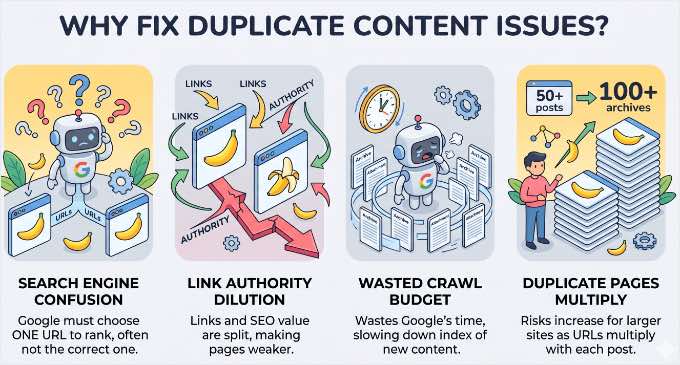
- When Google finds multiple URLs with the same content, it picks one to rank, and may not choose the one you want.
- Links and authority earned by your content get split across multiple URLs, weakening each one.
- Thin archive and attachment pages can waste your ‘crawl budget,’ which is the limited amount of time Google spends scanning your site. This mainly affects very large sites, but on any site, trimming low-value pages helps Google focus on the content that matters.
Most of these fixes take only a few minutes once you know where to look.
I’ll cover each source and exactly how to fix it in the sections below.
- How to Find Duplicate Content on Your WordPress Site
- How to Fix Duplicate Content from Category and Tag Archives
- How to Fix Duplicate Content from Paginated Archive Pages
- How to Fix Duplicate Content from Comment Pages
- How to Stop WordPress from Creating Duplicate Image Pages
- How to Fix Duplicate Content from Author Archive Pages
- How to Fix Duplicate Content from HTTP, HTTPS, and WWW Mismatches
- How to Fix Duplicate Content from URL Parameters
- How to Fix Overlapping Content (Merging Posts)
- What About Duplicate Content on Other Websites?
- How to Verify Your Fixes Are Working
- Frequently Asked Questions About Duplicate Content
- Additional Resources for WordPress SEO
Before You Start: The fixes in this guide all use All in One SEO. You can start with the free version (AIOSEO Lite), which is enough to follow most of the fixes in this guide, or use All in One SEO Pro for advanced features like the Redirection Manager and index status reports.
Once it’s installed, see our step-by-step guide to setting up All in One SEO to configure it.
How to Find Duplicate Content on Your WordPress Site
Before fixing anything, you need to know what you’re dealing with.
I recommend starting with two tools used together: All in One SEO‘s built-in Site Audit and Google Search Console.
Using AIOSEO’s Site Audit Tool
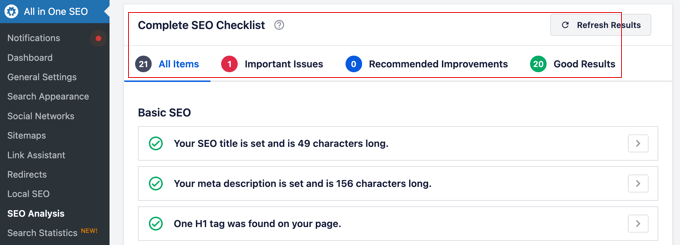
AIOSEO includes an SEO Audit Checklist that scans your entire site for duplicate content issues automatically. It checks for canonical tag problems, missing redirects, SSL/HTTPS configuration issues, and more, and scores your overall site health in real time.
To run an audit, go to All in One SEO » SEO Analysis in your WordPress dashboard. You’ll see a health score with issues sorted by priority and impact.
The Advanced SEO Audit section is the most relevant for duplicate content. It specifically flags canonical tag errors and redirect problems.
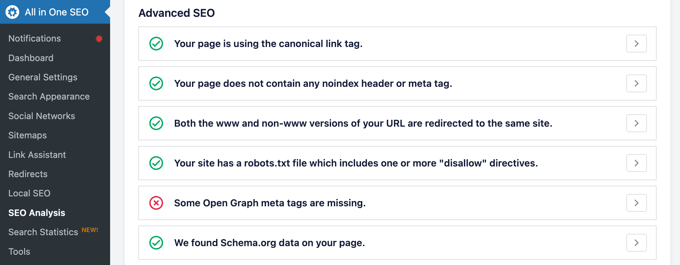
If your site is set up correctly, then you will see a green checkmark confirming that ‘Your page is using the canonical link tag,’ just like in the image above.
However, if there is a problem, you will see a red ‘X’ warning you that the tag is missing, along with a helpful ‘How to fix’ dropdown pointing you in the right direction.
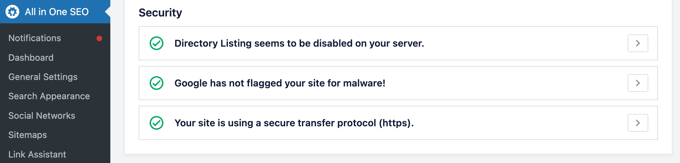
The Security SEO Audit section checks your SSL certificate and HTTPS setup, which I’ll cover in section 5.
Using Google Search Console
Google Search Console shows you exactly which URLs Google has discovered and what it decided to do with them.
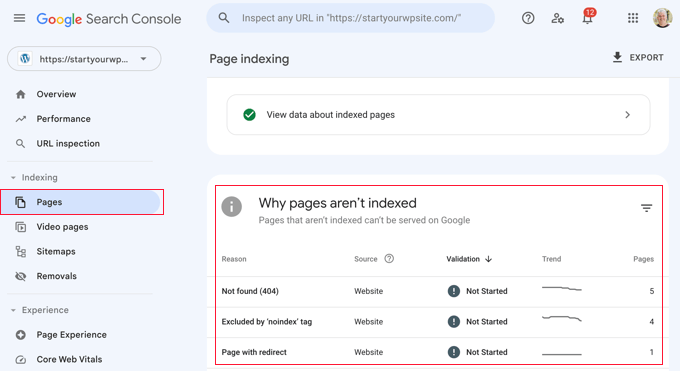
Go to Indexing » Pages in the left menu and look at the ‘Why pages aren’t being indexed’ section.
The entries you’re looking for are ‘Duplicate without user-selected canonical’ and ‘Duplicate, Google chose different canonical than user.’ These are your confirmed duplicate content problems, meaning that Google found them and made a judgment call you may not agree with.
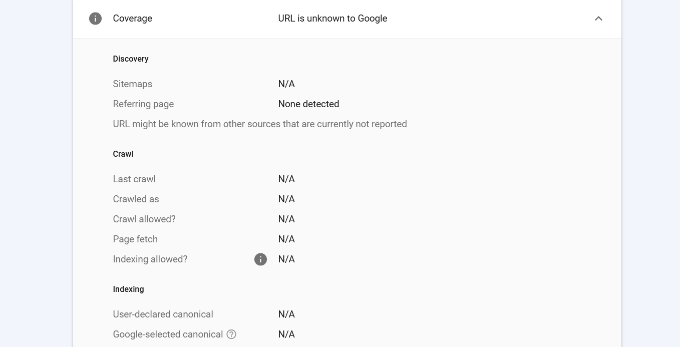
The URL Inspection tool is also useful for spot-checking individual pages. Enter any URL to see which canonical Google is using, when it last crawled the page, and whether the page is indexed.
For a full walkthrough on navigating these reports, see our ultimate guide on how to use Google Search Console.
Pro Tip: If you use AIOSEO (Elite plan), you can actually see these Google Search Console indexing reasons directly in your WordPress dashboard using the ‘Index Status Report’.
How to Fix Duplicate Content from Category and Tag Archives
WordPress creates a separate archive page for every category and tag you assign to a post. This means that a post in three categories appears in three archive listings, three different URLs with nearly identical content. When you add tags, the problem multiplies.
Category archives usually provide real organizational value and are worth keeping indexed. Tag archives are typically the problem. They’re too granular, overlap with categories, and rarely earn meaningful traffic on their own.
To fix this, you should noindex your tag archives because this removes them from Google’s index without deleting the pages or affecting your site structure.
How to Fix Archive Duplicate Content
AIOSEO gives you per-taxonomy noindex controls directly in the dashboard. Here’s how to noindex your tag archives.
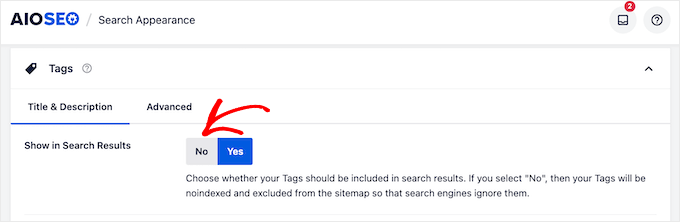
First, go to AIOSEO » Search Appearance » Taxonomies in your WordPress dashboard.
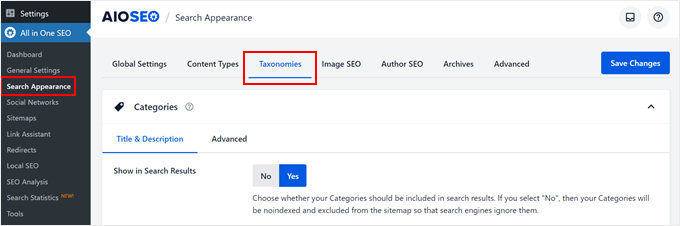
Click the Tags tab, then set ‘Show in Search Results’ to No and click ‘Save Changes’.
This adds a noindex meta tag to all tag archive pages. Google will stop indexing them on its next crawl, and they’ll stop competing with your actual posts.
For a deeper dive, see our guide on how to remove archive pages in WordPress.
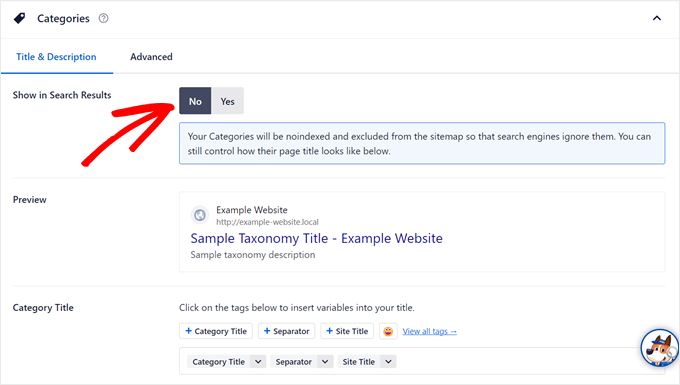
For categories, I recommend keeping them indexed if they serve a real navigational purpose.
However, if any category has only one or two posts, then noindex those in the same way. Thin category archives are rarely worth indexing.
As a general guideline to prevent duplicate content, think of categories as your book’s table of contents, and tags as the specific index at the back. Try to limit yourself to 1-2 categories and no more than 3-5 highly relevant tags per post.
How to Fix Duplicate Content from Paginated Archive Pages
As your WordPress site grows, you’ll naturally have more content than can fit on a single screen. WordPress handles this by using pagination. It automatically breaks your blog archives and long articles into multiple pages like /page/2/ and /page/3/.
While this is great for the user experience, it creates a technical challenge for SEO. Because these pages often have similar titles and overlapping content, Google may view them as duplicate versions of the same page.
If not handled correctly, this can dilute your ranking signals and, on larger sites, waste crawl budget, so your older content gets crawled less often.
To fix this, you will need to add a self-referencing canonical tag on every paginated page because this tells Google that each page in the series is a unique part of the archive. This makes sure that all your older posts still get crawled and indexed properly.
To learn more about how this works for long articles, see our guide on how to split WordPress posts into multiple pages.
How to Add Canonical Tags to Paginated Content
You don’t need a paid plan to fix this. The free version of AIOSEO handles pagination canonicals automatically. Once the plugin is active, it immediately starts adding the correct tags to every archive page on your site.
To confirm it’s working, you can use the URL Inspection tool in Google Search Console. Simply enter a paginated archive URL (like yourdomain.com/category/tutorials/page/2/). In the report, you should see that the ‘User-selected canonical’ matches exactly the URL you entered.
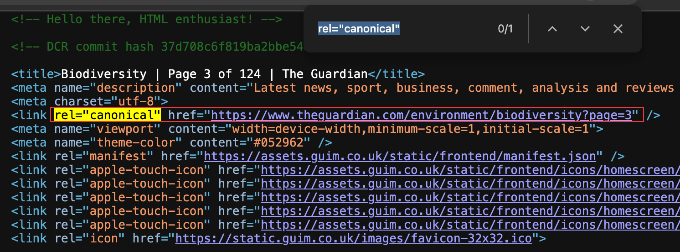
If you aren’t using Search Console yet, then you can also check manually. Open any paginated page on your site, right-click, and select ‘View Page Source’. Use the search function (Ctrl+F or Cmd+F) to look for rel="canonical". You should see a line of code like this:
<link rel="canonical" href="https://yourdomain.com/category/tutorials/page/2/" />
If you recently migrated from another SEO plugin, make sure to run AIOSEO’s SEO Analysis tool to verify that there are no conflicting canonical settings from your old setup. You can find it by going to All in One SEO » SEO Analysis in your WordPress dashboard.
How to Fix Duplicate Content from Comment Pages
Comments can create their own duplicate URLs in two ways.
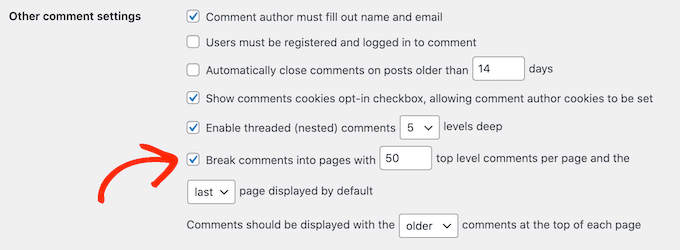
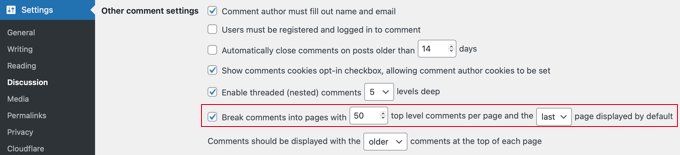
If you turn on ‘Break comments into pages’ under Settings » Discussion, WordPress starts publishing paginated comment URLs like yourdomain.com/post-name/comment-page-2/.
Threaded comments also add a ?replytocom= link to every Reply button, which can generate many crawlable near-duplicate URLs on comment-heavy posts.
These days, WordPress adds canonical tags to paginated comment URLs on its own, just like it does for multi-page archives. So, this is much less of an issue than it once was.
For most blogs, the simplest fix is to uncheck ‘Break comments into pages’ under Settings » Discussion if you don’t actually need paginated comments. You can see our full guide on how to paginate comments in WordPress for more detail.
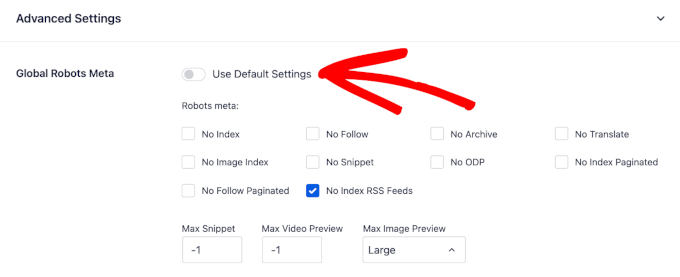
If you’d rather keep comment and archive pages out of search entirely, then AIOSEO has global ‘No Index Paginated’ and ‘No Follow Paginated’ controls under AIOSEO » Search Appearance » Advanced.
How to Stop WordPress from Creating Duplicate Image Pages
On many WordPress sites, every image you upload gets its own attachment page, which is a separate URL with almost no content.
Since WordPress 6.4, brand-new installs disable these pages by default. But sites created before 6.4, or upgraded from an older version, still have them turned on.
On a site with 200 posts, you likely have 500 or more of these thin pages that Google has to crawl and evaluate.
You can learn more about why this happens in our guide on how to disable image attachment pages.
Attachment pages add little value and can dilute your site’s overall quality signals. In my tests, disabling them is one of the fastest duplicate content wins available. And it only takes about 60 seconds to configure.
The exception is photography or portfolio sites where attachment pages contain real content: descriptions, EXIF data, or licensing information. If that’s you, then skip this fix.
How to Disable Attachment Pages
AIOSEO can automatically redirect attachment page URLs to the parent post, sending visitors and link equity to the relevant content instead of a dead-end image page.
Here’s how to set it up.
First, navigate to AIOSEO » Search Appearance and click on the ‘Image SEO’ tab.
Look for the ‘Redirect Attachment URLs’ setting. To make sure you get the best SEO results, select ‘the Attachment Parent’ option.
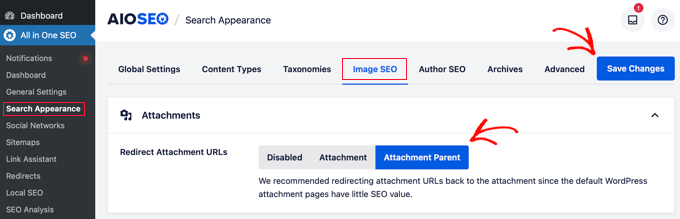
Don’t forget to click the ‘Save Changes’ button at the top or bottom of the page to lock in your settings.
This is the recommended choice because it keeps users on your website. When someone clicks an image link in search results, they are sent directly to the article where that image lives, providing context and keeping them engaged with your content.
If an image is unattached (meaning it was uploaded directly to the media library and isn’t part of a specific post, like your site logo), AIOSEO is smart enough to handle it. You can choose to have these images redirect to your Home Page or the Attachment file itself.
For most sites, redirecting unattached media to the homepage is the best way to keep visitors within your site structure.
How to Fix Duplicate Content from Author Archive Pages
WordPress creates an author archive for every user registered on your site. On a single-author blog, the URL /author/your-name/ shows the exact same posts as your main blog index, just at a different web address.
This is a serious duplicate content scenario. The author archive and the blog index are effectively identical, competing for the same rankings.
If you’re the only person writing for your site, having both indexed is unnecessary. For some, it might even be worth considering how to remove the author name from WordPress posts entirely to simplify the design.
How to Noindex Author Archives
To stop Google from indexing these redundant pages, go to AIOSEO » Search Appearance » Archives in your WordPress dashboard.
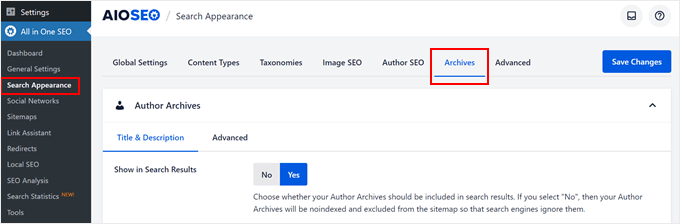
Click the ‘Author Archives’ tab, set ‘Show in Search Results’ to ‘No’, and click the ‘Save Changes’ button.
On multi-author sites, the situation is different. Author archives can have real SEO value, especially when different authors cover specialized topics.
In that case, keep them indexed and ensure each author has a complete bio on their profile page. To make this bio visible to your readers, you can see our guide on how to add an author info box in WordPress.
If you keep archives indexed, then AIOSEO’s Author SEO feature (Plus plan and above) also lets you add author (Person) schema markup that highlights each author’s credentials and expertise.
This gives Google clearer signals about who is behind your content, which supports E-E-A-T (Experience, Expertise, Authoritativeness, and Trustworthiness), which is Google’s content-quality framework.
For more details, see our complete guide to author SEO in WordPress.
How to Fix Duplicate Content from HTTP, HTTPS, and WWW Mismatches
Your homepage and every page on your site are technically accessible at four different URLs:
http://example.comhttps://example.comhttp://www.example.comhttps://www.example.com
Without redirects in place, Google may crawl and index all four versions.
This is one of the most serious duplicate content issues because it multiplies across your entire site, not just a handful of archives. Every page, post, and product is affected.
To prevent ‘Ghost URLs’, you need to make sure that every visitor (and every search engine bot) is forced into a single, secure version of your site.
This solves two problems at once: the HTTP vs. HTTPS conflict and the WWW vs. non-WWW duplicate content issue.
Set Your Preferred URLs in WordPress
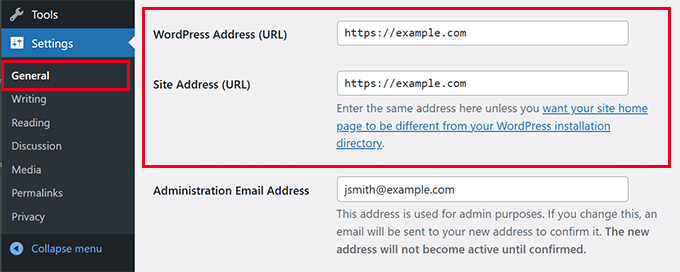
Before doing anything else, you need to tell WordPress exactly what your ‘official’ URL is. Go to Settings » General and look for the WordPress Address and Site Address fields.
Make sure both URLs are identical and include your preference for HTTPS and WWW. For example: https://www.example.com.
If you aren’t sure which version to pick, see our guide on WWW vs. non-WWW — which is better for WordPress SEO. The most important rule is to pick one and never change it.
Once these are set, All in One SEO will automatically use this official version for all your site’s canonical tags.
Enforce the Redirect at the Server Level
Setting the URL in WordPress tells the site how to behave, but you still need to force the browser to follow those rules.
Here are the options:
- The Firewall Method (Recommended): If you use Sucuri, then you can enforce this at the DNS level before traffic even reaches your site. In your Sucuri dashboard, go to Settings » HTTPS/SSL and toggle on ‘Force HTTPS’.
- The Plugin Method: If you aren’t using a firewall, then you can use WPCode to safely add a redirect snippet. This is much safer for beginners than editing a
.htaccessfile manually.
For complete instructions, see our guide on how to properly move WordPress from HTTP to HTTPS.
After making these changes, check Google Search Console’s Pages report after a week or two. Any indexed pages from the non-preferred domain version should gradually disappear from the coverage report.
Pro Tip: I’ve seen sites get stuck on page 2 of Google simply because their backlinks were split between the www and non-www versions of their URL. Google treated them as two different sites with half the authority each.
Once the website owner enforced a single canonical domain, the ranking signals consolidated, and the site moved to the top of page 1 almost overnight.
How to Fix Duplicate Content from URL Parameters
URL parameters are the ‘query strings’ that appear after a ? in a web address. These are things like ?sort=price, ?color=red, or ?sessionid=abc123.
While these are useful for sorting products or tracking marketing campaigns, each unique combination technically creates a new URL with identical page content.
These duplicates most commonly come from two sources:
- eCommerce Filters: Options for price, size, or color on large product catalogs. A single product page with ten filter options can easily generate 50 or more duplicate URLs.
- Campaign Tracking: Parameters appended by email or social media campaigns (like UTM codes). To learn how these work, see our guide on how to set up email newsletter tracking in Google Analytics.
Duplicate parameters are a huge reason why large sites leak ranking power. Instead of Google focusing on one strong page, it gets distracted by dozens of filtered variations.
How to Handle URL Parameters
All in One SEO (AIOSEO) automatically adds canonical tags to these parameterized URLs. It points them back to the clean URL (the main page link without any of the extra tracking or sorting codes at the end).
This process saves your crawl budget. Instead of Google wasting time crawling 50 different versions of the same product, it focuses all its energy on your main, authoritative page.
Note: If you intentionally want a specific product filter to rank in Google, like ‘red running shoes’, you will need to create a dedicated landing page for that term instead of relying on URL parameters.
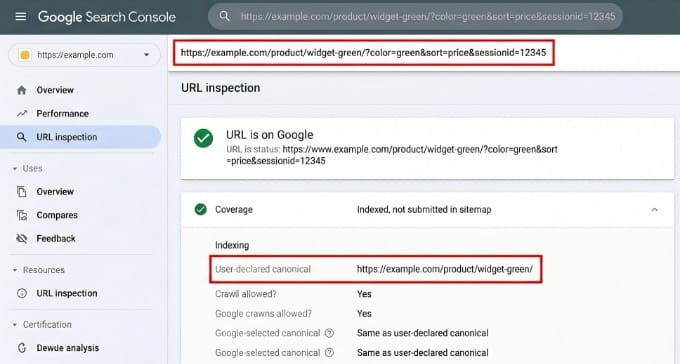
To verify this is working, use the URL Inspection tool in Google Search Console on a messy, parameterized URL.
Make sure that the ‘Google-selected canonical’ points to the clean version of the URL. As long as you have AIOSEO installed, it works smoothly with WordPress and WooCommerce to make sure these tags are handled correctly without any manual configuration.
If you run an online store, then you can see more tips on this in our ultimate WooCommerce SEO guide.
How to Fix Overlapping Content (Merging Posts)
While most duplicate content is created by WordPress settings, sometimes the issue comes from the content itself. This happens when you accidentally cover the same topic twice.
If you have two articles targeting the same keyword, they will compete against each other in Google search results. This is known as keyword cannibalization.
Instead of one page ranking high, Google gets confused and splits your ‘ranking power’ between both pages, often leaving both of them stuck on lower search result pages.
You can visualize how duplicate content damages your ranking power by thinking of it like a pie. Your total SEO value (or link equity) is divided by the number of duplicate URLs. The more duplicate versions you have, the smaller the slice of ranking power each page gets.
Spotting Overlapping Content
The most reliable way to find these overlapping posts is by using AIOSEO Search Statistics (the Elite plan).
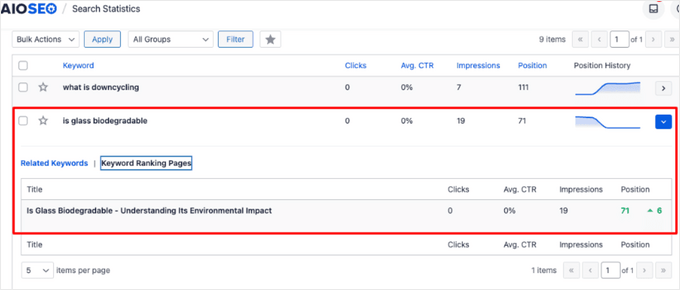
In your WordPress dashboard, go to AIOSEO » Search Statistics and look for the ‘Keyword Rank Tracker’.
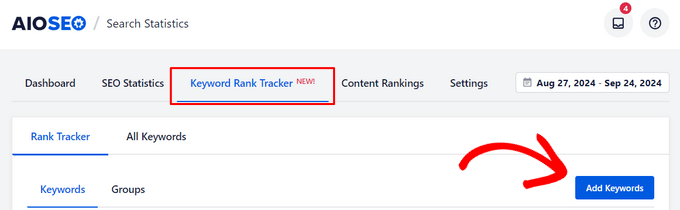
To see if your pages are competing, simply click on a keyword in the Rank Tracker and select the ‘Keyword Ranking Pages’ tab.
If you see multiple URLs listed there for the same term, it’s a sign that Google is struggling to decide which page to rank. So, you should consider merging them or using a canonical tag to point to the primary version.
For a step-by-step walkthrough on setting this up, see our guide on how to check if your blog posts are ranking for the right keywords.
Merging and Redirecting Your Posts
To fix overlapping content, you should combine your related articles into a single, comprehensive ‘Ultimate Guide’.
Start by picking the winner. This is the post that already has the best rankings or the most high-quality backlinks.
Next, copy any unique tips, data, or media from the weaker article into the winning post.
Once your main post is updated and comprehensive, I recommend changing the weaker version’s status to ‘Draft’ instead of deleting it right away. This keeps your content safe just in case you need to reference it later.
The final and most important step is setting up a 301 redirect. This tells search engines that the old page has moved permanently to the new one. You can do this quickly using the Redirection Manager in AIOSEO.
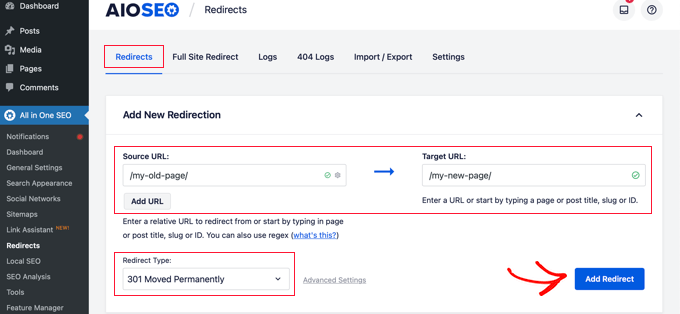
By pointing the deleted URL to your new combined post, you ensure that all the original ranking power is consolidated into a single, authoritative URL. For a step-by-step look at this setup, see our beginner’s guide to creating 301 redirects in WordPress.
What About Duplicate Content on Other Websites?
So far, I’ve focused on the duplicates WordPress creates on your own site. But sometimes another website copies your work, either by scraping it automatically or by republishing it word for word.
Google does not penalize you for being copied. It simply picks one version to show and filters out the rest.
The risk is that Google does not promise your original wins. If a higher-authority site copies you, then its version can sometimes be the one that ranks.
Make It Harder to Scrape Your Content
By default, WordPress publishes a full-text RSS feed, and many scrapers simply auto-republish whatever appears in it. You can limit what they grab by sending only an excerpt.
Go to Settings » Reading, find ‘For each post in a feed, include’, and select the ‘Excerpt’ option.
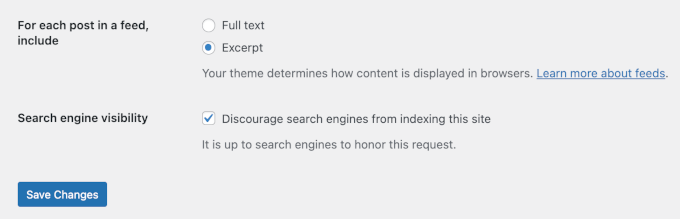
Keep in mind that this is a deterrent, not a guarantee. A determined scraper can still copy your page HTML directly. Plus, switching to excerpts means legitimate RSS and email subscribers see shortened posts instead of the full text.
What to Do If Someone Steals Your Content
If you find your content republished without permission, then you have a few realistic options. Our guide on how to find and remove stolen content in WordPress walks through each one in detail:
- Contact the site owner or host. Ask them to remove the content. If the owner ignores you, then their web host will often act on a clear copyright complaint.
- File a copyright removal request with Google. Google’s legal removal tool lets you report the copied page. This removes it from Google search results only, not from the other website itself.
- Report it as spam. Scraped content is a named violation of Google’s spam policies, so you can report it, though Google does not promise it will take action on any single report.
One more note for anyone who syndicates posts on purpose, such as republishing to a partner site or Medium. The current recommendation is for the partner to add a noindex tag to their copy, or link back to your original, rather than relying on a cross-domain canonical tag.
Our guide on content syndication in WordPress covers this in more depth.
How to Verify Your Fixes Are Working
After making these changes, it is important to be patient. Canonical and noindex changes take time to propagate, and Google doesn’t revisit every page on your site overnight.
Give it 1–2 weeks before expecting to see major shifts in your reports.
In Google Search Console, revisit the ‘Pages’ report under the Indexing section. You should see the count for ‘Duplicate without user-selected canonical’ start to decline. For a deeper look at these reports, see our guide on how to use Google Search Console effectively.
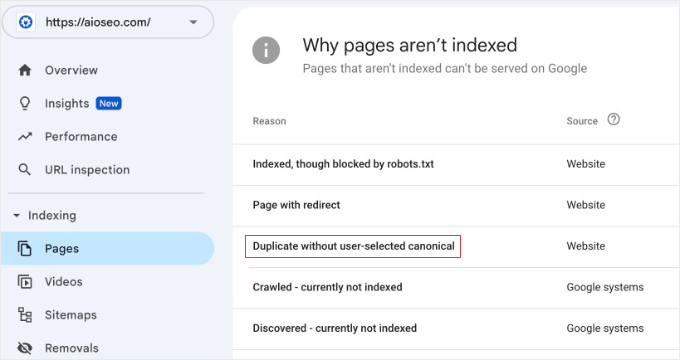
If the count stays flat after two weeks, then you can use the URL Inspection tool on a specific page to confirm that Google has picked up the new canonical tag.
You should also use AIOSEO‘s SEO Audit Checklist. Simply run a fresh audit after your changes to confirm that any ‘Advanced SEO’ or ‘HTTPS’ issues have cleared from the report.
For more details on this, see our guide on how to create an SEO report for your WordPress site.
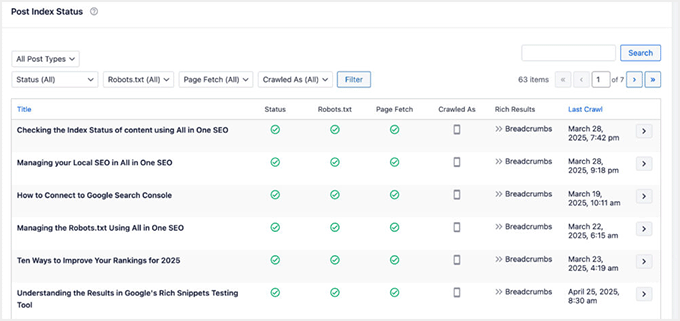
For ongoing monitoring, AIOSEO’s Post Index Status feature (Elite plan) provides a color-coded status for every page.
This makes it easy to catch new duplicate content issues at a glance before they can affect your rankings.
Finally, if you use Sucuri, their security scanner can flag mixed content warnings, like HTTP images loading on an HTTPS page, that might still be causing duplicate URL issues behind the scenes.
Frequently Asked Questions About Duplicate Content
Managing duplicate content can feel like a technical maze, but it is one of the most effective ways to boost your site’s ranking power.
Here are answers to the most common questions our readers ask about identifying and fixing duplicate URLs using All in One SEO.
Does duplicate content result in a Google penalty?
There’s no direct algorithmic penalty for duplicate content. Google typically picks one version to rank and filters out the rest. The real cost is diluted authority. Instead of one strong URL earning ranking signals, those signals get split across several near-identical ones.
Which is better for duplicate archives, noindex or canonical?
Use noindex when the page has no standalone SEO value. Tag archives and author archives on single-author sites are good examples. Use canonical when the page is useful to visitors but overlaps with a higher-priority URL, as is the case with paginated archive pages.
Do I need a paid AIOSEO plan to fix duplicate content?
Most of the essential tools for managing duplicate content, such as noindexing archives, redirecting attachment pages, and automatic canonical tags, are available in the free version of All in One SEO. The SEO Audit Checklist, which helps identify these issues, is also included for free.
However, the full Redirection Manager (including manual 301 redirects, 404 error tracking, and automatic redirects) requires the Pro plan or higher, and the Post Index Status report requires the Elite plan.
How can I quickly verify if my canonical tags are working?
There are two fast ways to check. First, you can right-click any page, select ‘View Page Source’, and search (Ctrl+F) for rel="canonical". Alternatively, you can use the AIOSEO SEO Toolbar or a browser extension like ‘SEO Minion.’
These tools show you the canonical URL in one click without you having to dig through the website’s code.
How long before I see results after fixing duplicate content?
Most sites see measurable improvements in Google Search Console’s coverage report within 2–4 weeks. Ranking improvements can take longer, typically 4–8 weeks, depending on how frequently Google crawls your site and how competitive your target keywords are.
Pro Tip: If you have fixed a major duplicate issue on a high-priority page, you can use the ‘Request Indexing’ feature in Google Search Console to ask Google to recrawl that specific URL immediately.
Does duplicate content affect my visibility in AI search engines?
Most likely, yes. AI search engines like ChatGPT and Perplexity tend to favor authoritative, clearly-sourced pages when generating answers. If your content is split across multiple duplicate URLs, these systems may struggle to identify your page as the primary source, which can cost you AI-driven traffic.
What is the difference between a trailing slash and a non-trailing slash URL?
To Google, example.com/post and example.com/post/ are technically two different pages. If your site allows both to load, it creates a duplicate content issue.
All in One SEO helps prevent this by automatically setting a canonical version, but you should also go to Settings » Permalinks in your WordPress dashboard to ensure your custom structure consistently includes or excludes the trailing slash (/) to avoid confusion.
Additional Resources for WordPress SEO
I hope this article helped you learn how to find and fix duplicate content in WordPress.
You may also like to see some other guides for improving your WordPress SEO:
- Ultimate WordPress SEO Guide for Beginners — a step-by-step walkthrough of every major on-site SEO setting in WordPress, from permalinks to sitemaps.
- How to Add Your WordPress Site to Google Search Console — get your site verified so you can monitor indexing issues, crawl errors, and keyword performance.
- What Is an XML Sitemap? How to Create a Sitemap in WordPress — help Google find and crawl all your important pages faster, which matters more once duplicate URLs are cleaned up.
- Beginner’s Guide to Creating 301 Redirects in WordPress — learn how to redirect old or duplicate URLs so their ranking signals consolidate on the right page.
- The Ultimate Guide to Boost WordPress Speed & Performance — once crawl budget is freed up from duplicate pages, a faster site helps Google index your content even more efficiently.
If you liked this article, then please subscribe to our YouTube Channel for WordPress video tutorials. You can also find us on Twitter and Facebook.
The post How to Find and Fix Duplicate Content Issues in WordPress first appeared on WPBeginner.


No comments:
Post a Comment