
Every WordPress user eventually reaches a point where they need to add custom code to their site.
Whether you’re trying to install Google Analytics tracking code, add a small PHP function to tweak your theme, or just want some custom CSS to fix a stubborn layout issue, you need a reliable (and safe!) way to get that code onto your site.
Unfortunately, editing your theme’s functions.php file directly is incredibly risky.
One wrong character can immediately crash your entire site. Even if everything goes smoothly, you’ll lose all that code every single time you update your theme.
That’s exactly why I spent weeks testing every major code snippets plugin on the market. I wanted to find the ones that are actually worth installing, focusing on critical factors like built-in safety features, support for different code types, ease of use, and overall value.
In this guide, I’ll share my top picks so you can customize your site with total confidence.
Quick Summary: After testing all the top WordPress code snippets plugins, I recommend WPCode as the best overall choice. It combines a library of 3,000+ ready-to-use snippets, smart error handling, and flexible auto-insert locations into a single beginner-friendly plugin.
Quick Overview: 7 Best WordPress Code Snippets Plugins
| # | Plugin | Best For | Free Version | Pricing |
|---|---|---|---|---|
| 🥇 | WPCode | Best all-around code snippets plugin | ✅ | $49/yr |
| 🥈 | Code Snippets | Best for beginners who want maximum safety | ✅ | $149/yr |
| 🥉 | Woody Code Snippets | Best for marketers who also manage ads | ✅ | $39/yr |
| 4 | WPCodeBox | Best for professional developers | ❌ | $39/yr |
| 5 | Header Footer Code Manager | Best for simple tracking scripts | ✅ | $35/yr |
| 6 | Advanced Scripts | Best for frontend developers who write SCSS | ❌ | $19.99 (lifetime) |
| 7 | Insert PHP Code Snippet | Best for embedding PHP in posts and pages | ✅ | Free |
Why Use a Code Snippets Plugin?
If you’ve ever needed to add custom functionality to WordPress, you’ve probably been told to ‘just paste this snippet into your functions.php file.’
While this seems straightforward, it’s actually very risky. A single missing semicolon or a simple typo can take your entire WordPress website offline, leaving you with a broken site and a lot of stress.
Using a dedicated code snippets plugin solves this problem by storing your custom code in a completely separate database from your theme files.
This is a huge advantage because it means you won’t lose your customizations every time you update or change your WordPress theme.
Safety is another major reason to make the switch. Most high-quality code snippets plugins include built-in error detection that acts as a safety net.
This technology scans your code for mistakes and may even stop your code from running completely if it detects a potential crash. This means you can experiment with new features and site tweaks without fear.
Beyond safety, these plugins can also keep your site lean and fast. Many WordPress users fall into the trap of installing dozens of individual plugins just to handle minor tasks like disabling comments, adding a Google Analytics tracking script, or enabling SVG image uploads.
A single code snippets plugin can handle all these tasks using lightweight bits of code. This helps you avoid the performance bloat and potential software conflicts that come from having too many active plugins on your site.
For more on this topic, please see our article on WordPress plugin vs functions.php file (which is better?)
How I Tested and Reviewed WordPress Code Snippets Plugins
At WPBeginner, we know that adding custom code to your site can be nerve-wracking. One wrong line of code can easily break your site, which is why choosing the right tool is so important for your website’s performance and security.
To find the top solutions, I didn’t just look at the ratings. Instead, I put each code snippets plugin through a series of real-world stress tests to see which ones are truly reliable. My goal was to see how these plugins handle everything from simple CSS tweaks, right through to complex PHP functions.
Here’s the exact criteria I used when evaluating every plugin on this list:
- 🛠️ Installation and ease of setup: I looked at the onboarding process for each plugin. How quickly can you go from installing the plugin to successfully activating your first custom code snippet?
- 🔒 Safety and error handling: This is the most important test. I deliberately pasted broken code into each editor to see if the plugin would catch the syntax error or whether it would crash my entire site.
- 🔍 Code types supported: A great code snippets plugin should be a one-stop shop. With that in mind, I tested how well each tool handles different languages, including PHP, JavaScript, CSS, HTML, and even advanced preprocessors like SCSS (this is an advanced way to write CSS that saves developers time by using variables and shortcuts).
- ⚡ Performance impact: I used speed testing tools to measure the footprint of each plugin. I wanted to make sure the plugin didn’t add any noticeable overhead or slow down your page load times.
- 👍 Snippet management: As your site grows, organization becomes vital. I evaluated how easy it is to categorize, search, and toggle snippets on or off, and whether you can export snippets to a new project.
- 💰 Value for money: I compared the free versions against the premium offerings. In particular, I evaluated whether the free features are enough for most users and if the premium upgrades provide enough value to justify the cost.
I also tested a few other popular options like FluentSnippets and Simple Custom CSS and JS, but I left them off this list on purpose. My goal was to give you a focused set of clear picks for each type of user, rather than overwhelm you with every plugin I tried.
🙌 Why Trust WPBeginner?
At WPBeginner, our team has over 17 years of hands-on WordPress experience. We’ve tested thousands of plugins, themes, and tools on real websites. We also actively use WPCode on our own sites for custom code management.
We don’t just read feature lists. We install, configure, and test every product before recommending it. With 3,000+ tutorials and millions of readers every month, we take our recommendations seriously.
You can read more about our process in our editorial guidelines.
1. WPCode – Best All-Around Code Snippets Plugin
| WPCode Pros | ✅ Over 3,000 pre-built code snippets with one-click import ✅ AI snippet generation ✅ Advanced code revisions with a diff viewer and one-click rollback ✅ Snippet scheduling ✅ Smart error handling catches mistakes before they break your site ✅ Cloud snippet library lets you store, sync, and reuse custom code across multiple sites ✅ Supports PHP, JavaScript, CSS, HTML, and text snippets in a single plugin ✅ Admin bar code spotter shows exactly which snippets are active on any page you’re viewing ✅ Built-in code generators for custom post types, schema markup, and other common functions |
| WPCode Cons | ❌ Conversion pixel tracking and WooCommerce integration require the Plus plan ($99/year) or higher ❌ AI snippet generation is capped by plan (the higher tiers raise the yearly limit, up to 500 on Pro and 1,000 on Bundle) |
| Pricing | Starts at $49/year (Free lite version also available) |
| Best For | WordPress users who want one plugin to handle all custom code needs with a massive pre-built snippet library |
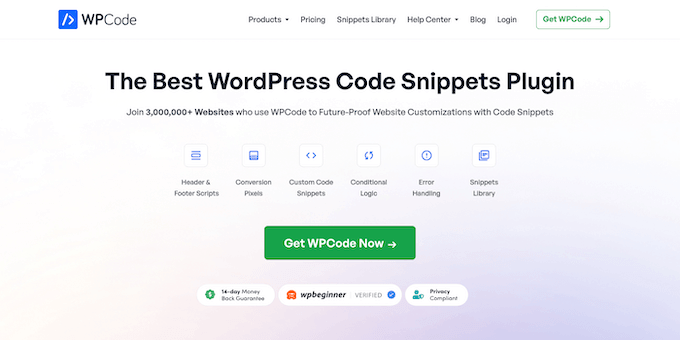
WPCode is the most popular WordPress code snippets plugin on the market, with over 3 million active installations, and it’s the go-to choice for beginners and power users alike. It combines a massive pre-built snippet library and AI snippet generator with safe error handling and flexible placement options.
My Experience
In my opinion, WPCode’s snippet library is the standout feature, so it was the first thing I explored.
Instead of searching the web for code to disable Gutenberg on certain post types, I found a ready-made snippet right inside WPCode and added it with a single click.
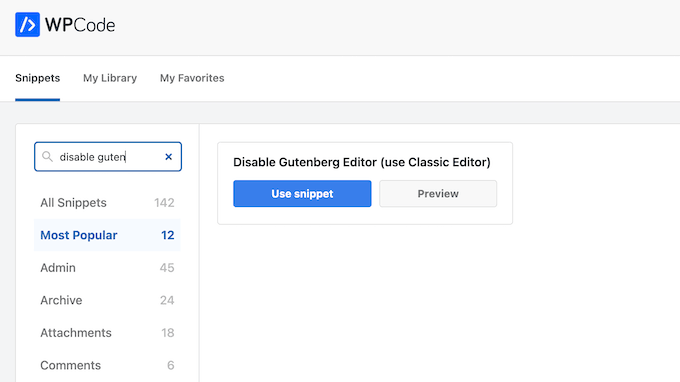
I also found snippets to add SVG upload support and remove the WordPress version number, so I completed three customizations in under two minutes without writing a single line of code.
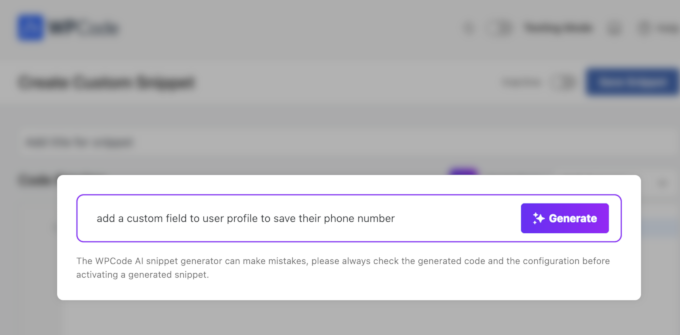
When the library didn’t have exactly what I needed, I turned to WPCode’s AI snippet generation. I described what I wanted in plain English and WPCode wrote the PHP for me.
I then tested the auto-insert system, which is where WPCode really separates itself from simpler alternatives.
For this test, I added a custom message above the WooCommerce checkout form.
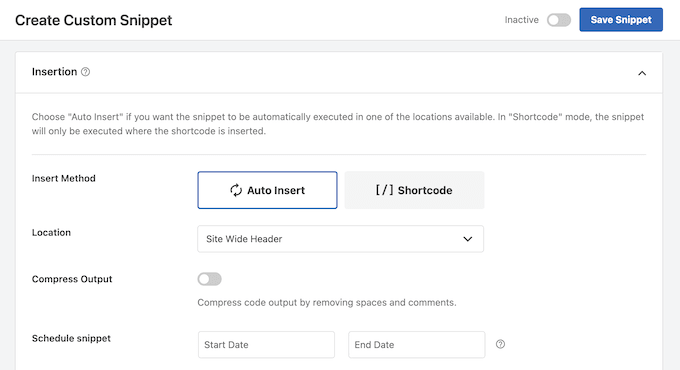
Instead of figuring out the correct WooCommerce hook myself, WPCode picked the right placement for me, and its auto-insert locations cover the header, footer, before and after post content, specific paragraphs, and WooCommerce-specific hooks.
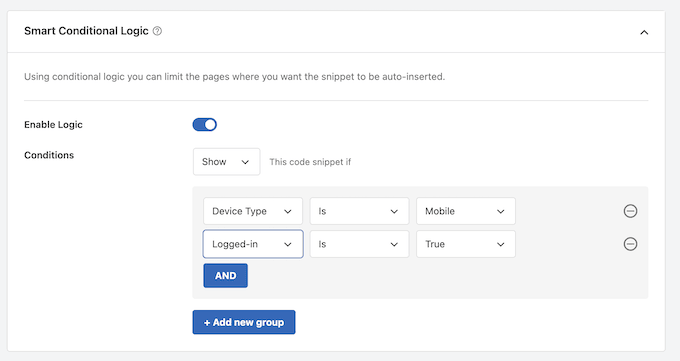
I also explored WPCode’s conditional logic, which targets snippets by user role, page URL, post type, device type, and referral source without writing any PHP yourself.
I set up a snippet that only loads on mobile devices for logged-in users, and the whole process took about 30 seconds.
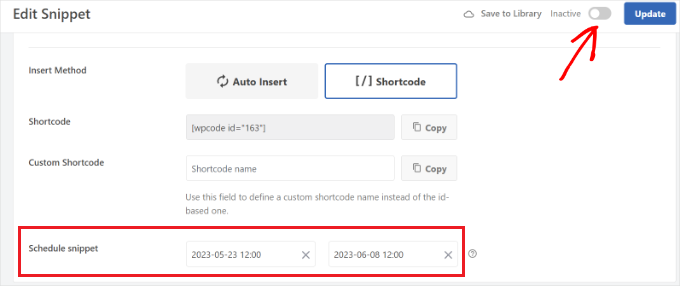
Snippet scheduling pairs nicely with this.
I set a start and end date and WPCode switched the snippet on and off automatically, with recurring schedules available for something like a seasonal banner.
If you manage multiple sites, the cloud library is also genuinely useful. I saved a set of snippets to my private cloud account and pulled them into a second test site in a few clicks, which removes a ton of repetitive work for freelancers and agencies who reuse the same customizations across client projects.
Plus, advanced code revisions made editing over time feel safe. WPCode saves a version on every change, the diff viewer shows exactly what changed and who made the edit, and a one-click rollback restores the last working version, which is reassuring for teams handing sites to clients.
WPCode also includes code generators that build ready-to-use snippets for custom post types, schema markup, and other common functions from a simple form.
However, keep in mind that this is a very feature-rich and advanced plugin, so if you only need to paste a tracking script into your header, it may feel like overkill. In that case, a lighter option like Header Footer Code Manager further down this list makes more sense.
While there is a lite version of WPCode, it removes many of the best features. In particular, you’ll need to upgrade to the Plus plan ($99/year) or higher for conversion pixel tracking (Facebook, TikTok, Google) and WooCommerce integration.
🧑💻 Why I Recommend WPCode: WPCode is the best choice if you want a single plugin to handle all your custom coding needs. The pre-built snippet library alone makes it worth installing, and the paid plans start at $49/year with AI snippet generation, advanced code revisions, and snippet scheduling all included at that entry tier.
💡 For a deep dive into this popular code snippets plugin, check out our WPCode review.
2. Code Snippets – Best for Beginners Who Want Maximum Safety
| Code Snippets Pros | ✅ Safe Mode catches fatal PHP errors and disables the broken snippet before it takes down your site ✅ Interface mirrors the standard WordPress plugins page ✅ File-based execution mode bypasses database queries for better performance ✅ Built-in import tools let you migrate from WPCode, HFCM, or Insert PHP Code Snippet ✅ Free version works on unlimited sites with no limit on snippet count |
| Code Snippets Cons | ❌ CSS and JavaScript snippet support requires Pro starting at $149/year ❌ No built-in code generators or extensive pre-made snippet library ❌ Conditional logic for controlling where snippets run is locked behind the Pro plan |
| Pricing | Free for PHP snippets on unlimited sites. Pro starts at $149/year |
| Best For | Beginners who are nervous about adding custom code and want the strongest crash protection available |
Code Snippets is the second most popular code snippets plugin for WordPress, with over 1 million active installations. It’s built around one core principle: making it impossible for a code snippet to crash your site.
My Experience
Upon activation, the first thing I noticed was how familiar the Code Snippets interface felt.
The snippet management screen looks almost identical to the standard WordPress plugins page.
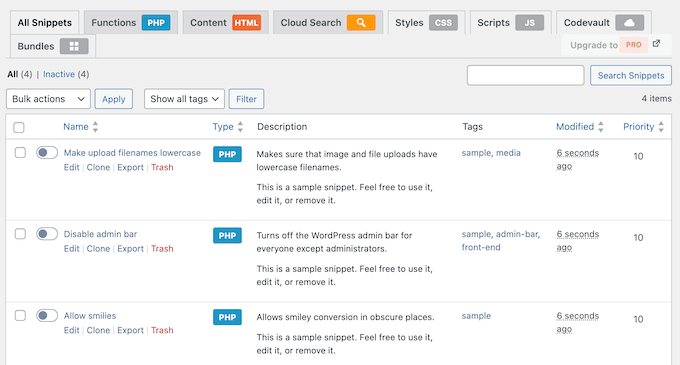
If you’ve ever activated or deactivated a WordPress plugin, then you already know how to use Code Snippets. That’s a smart design decision because it means there’s basically no learning curve for WordPress users.
I deliberately pasted a snippet with a syntax error to test the Safe Mode feature. Instead of crashing your site (often called the white screen of death), Code Snippets caught the fatal error, automatically disabled the problematic snippet, and displayed a clear error message explaining exactly what went wrong.
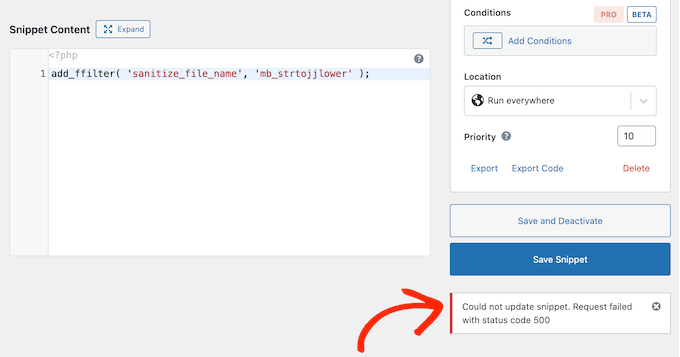
The error message even pinpointed the exact line where the problem occurred. This made it easy to identify and fix the issue.
I also tried the plugin’s file-based execution mode. Instead of loading snippets from the database on every page load, the plugin writes your snippets to the site’s file system.
This takes the heavy lifting off your website’s database, noticeably reducing the workload on your server and making your pages load faster for your visitors.
In addition, I was really impressed by the plugin’s import functionality.
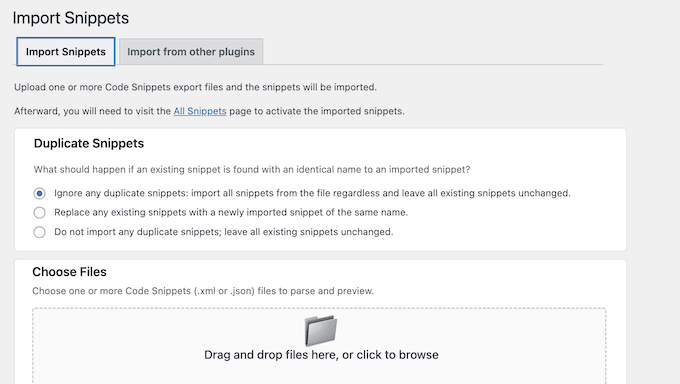
Code Snippets can import snippets directly from WPCode, Header Footer Code Manager, and Insert PHP Code Snippet. During testing, I exported a set of snippets from WPCode and imported them into Code Snippets with just a few clicks. If you ever need to switch plugins, this removes the biggest barrier to migration.
After that, I explored the Code Snippets Cloud platform, which is their community-driven snippet library. Here, you can search for common tweaks and download them directly into your site.
The Pro plan also adds AI-powered snippet generation, where you describe what you want in plain English and the plugin generates the necessary PHP code.
One limitation is that the free version of Code Snippets only supports PHP. If you need to manage CSS or JavaScript, then you’ll need to upgrade to the Pro plan (starting at $149/year).
This is a significant gap because WPCode Lite lets you manage all code types for free. The conditional logic builder is also locked behind the Pro plan, which means free users will need to handle page targeting manually in their PHP code.
🧑💻 Why I Recommend Code Snippets: This plugin is the best choice for beginners who are nervous about adding custom code to their sites. The Safe Mode feature is the most reliable crash protection I’ve tested, and the WordPress-native interface means there’s practically no learning curve for new users.
3. Woody Code Snippets – Best for Marketers Who Also Manage Ads
| Woody Code Snippets Pros | ✅ Dedicated ad snippet type lets you manage AdSense, affiliate banners, and promotional content alongside custom code ✅ Email error notifications alert you immediately when a snippet causes an issue ✅ Code revision history lets you roll back to a previous working version ✅ Lite version of Woody Code Snippets provides solid basic functionality for PHP, CSS, JS, and HTML snippets ✅ Execution priority management controls the order snippets run when multiple are active |
| Woody Code Snippets Cons | ❌ Code revisions and rollback require the Personal plan ($39/year) or higher ❌ No pre-built snippet library. You’ll need to write all code from scratch or find it externally |
| Pricing | Free on WordPress.org. Premium plans start at $39/year |
| Best For | Bloggers and marketers who need to manage both custom code and ad placements from a single interface |
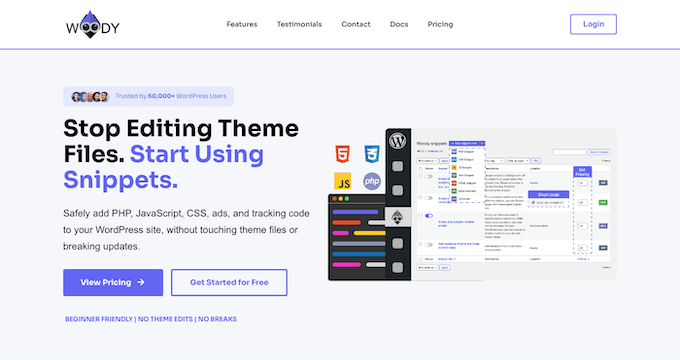
Woody Code Snippets is a hybrid code and content management plugin. What makes it unique is its built-in ad snippet type, which lets marketers manage AdSense placements, affiliate banners, and promotional blocks alongside their custom code.
My Experience
The ad snippet feature was the first thing I tested, since that’s what really sets Woody apart from other code managers.
Instead of installing a separate ad management plugin, I created ad snippets directly in Woody’s user interface.
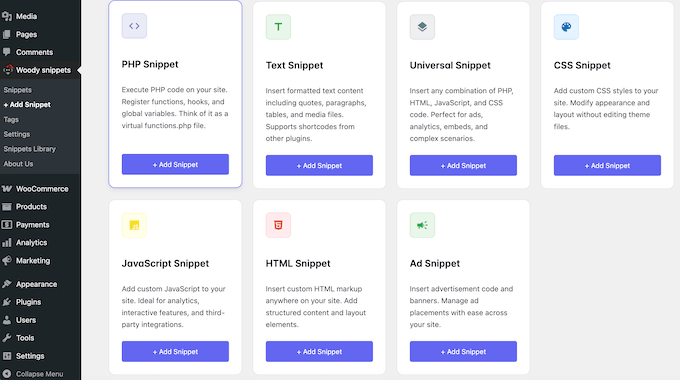
During testing, I set up different ad banners for different categories on a fictional personal finance blog. The finance category got investment-related ads, while the budgeting category got different promotions.
The conditional targeting made this whole process straightforward. If you’re currently adding Google AdSense manually, Woody provides a much cleaner approach. Just keep in mind that you will still need an active Google AdSense or affiliate network account to get the ad codes.
I also tested the standard code snippet types. Woody supports PHP, JavaScript, HTML, CSS, and ‘Universal’ snippets, which let you combine multiple code types in a single snippet.
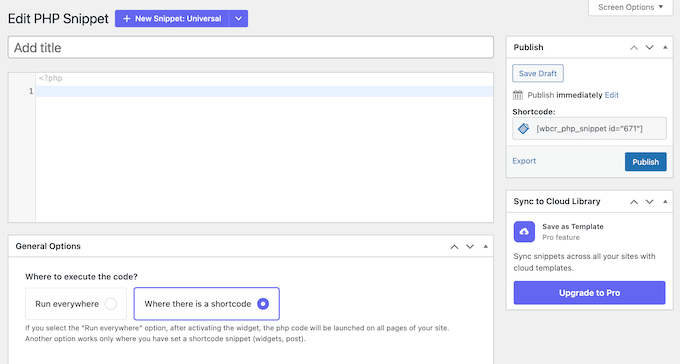
Woody’s email error notification feature was also genuinely useful. When I deliberately broke a PHP snippet during testing, the plugin sent me an email alert within seconds.
These notifications are invaluable when you manage multiple sites. Most competing plugins only show error messages in the admin panel itself, which are easy to miss when you’re juggling lots of different websites.
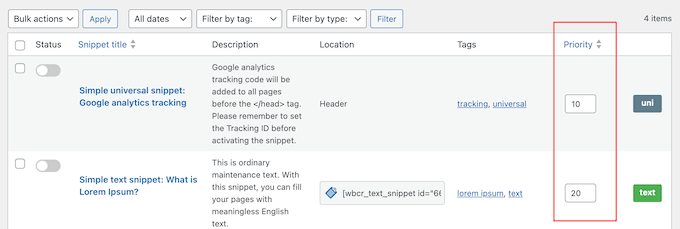
I also spent some time exploring the execution priority control. When you have multiple snippets active, you can assign a priority number to each one.
Setting the priority order took about two seconds and worked perfectly, every single time.
After that, I explored the code revision history in the premium plugin, which saves a version every time you edit a snippet. This is a life saver if you make a change that breaks something, and need to roll back quickly.
However, this feature requires a paid plan (starting at $39/year). Without this feature, there’s no easy way to undo a bad edit if it breaks your snippet.
Woody also doesn’t offer cloud sync or import tools for migrating from other snippet plugins. If you’re switching to Woody from WPCode, you’ll need to recreate your snippets manually.
🧑💻 Why I Recommend Woody Code Snippets: This is the best choice for bloggers and marketers who want to manage both custom code and ad placements from a single plugin. The dedicated ad snippet type saves you from installing yet another plugin, and the email notifications keep you informed without having to constantly check the dashboard.
4. WPCodeBox – Best for Professional Developers
| WPCodeBox Pros | ✅ Monaco editor gives you VS Code-level autocomplete, syntax highlighting, and documentation on hover inside WordPress ✅ SCSS and LESS compilation happens automatically, so you can use modern CSS workflows without a separate build tool ✅ Export snippets as standalone plugins that run independently from WPCodeBox ✅ Live reload for CSS changes gives you instant visual feedback ✅ cdnjs integration for loading external libraries without manual enqueueing |
| WPCodeBox Cons | ❌ No free version available, so you’ll need to pay $39/year to try it (although there’s a 30-day money-back guarantee) ❌ Cloud storage costs an additional $9 to $19 per month on top of the plugin license ❌ Professional developer interface is complex for beginners |
| Pricing | Starts at $39/year. Lifetime unlimited license available for $199 |
| Best For | Professional WordPress developers who want a full coding environment (IDE) inside the dashboard with SCSS compilation and cloud sync |
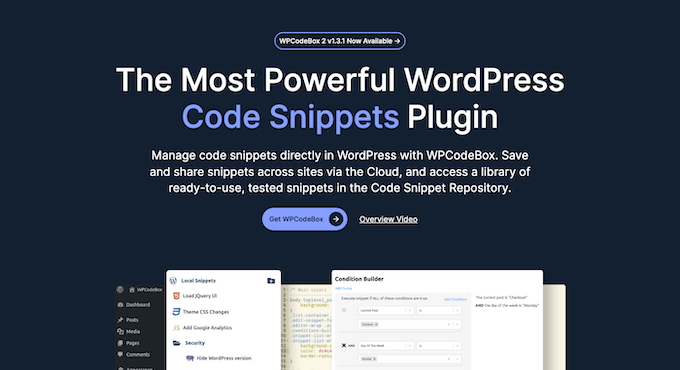
WPCodeBox brings a full integrated development environment (IDE) experience into the WordPress dashboard using the Monaco editor. This basically means you get a professional workspace for writing code.
What sets WPCodeBox apart is the editing environment itself. You get a full IDE inside WordPress, with autocomplete, documentation on hover as you type a hook name, and Emmet shortcuts.
On top of that, you can sync snippets across sites through the cloud and export any snippet as a standalone plugin that keeps running even if you turn WPCodeBox off. SCSS and LESS compilation are part of the package too, but the editing workflow is the real reason to pick it.
My Experience
The Monaco editor was the first thing that stood out when I opened WPCodeBox. WordPress autocomplete kicked in as soon as I started typing a hook name, showing me the correct parameters and linking to the official documentation on hover.
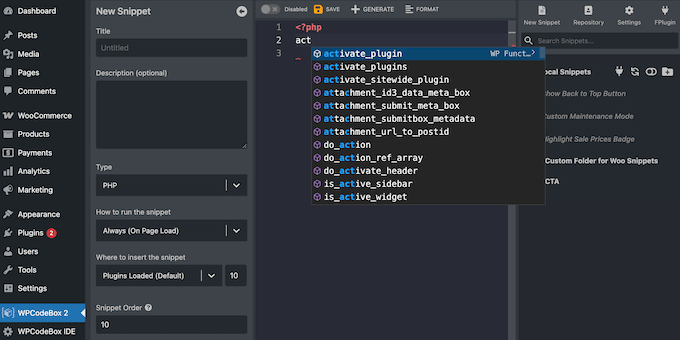
This is the kind of experience you normally only get in a desktop code editor like VS Code.
So, having it right inside the WordPress dashboard removes a lot of the context switching that slows down development work.
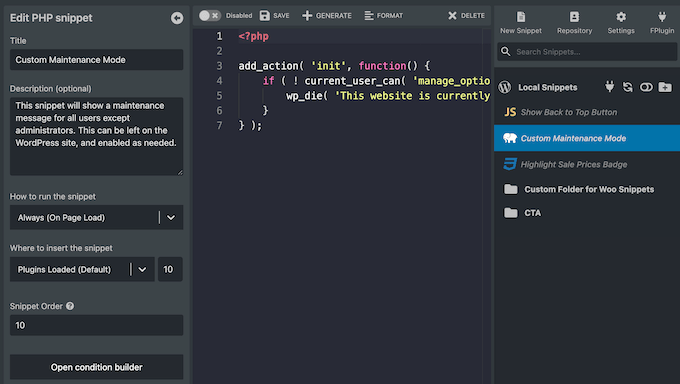
I tested the SCSS compilation by writing a set of partials with variables, nesting, and mixins. WPCodeBox compiled everything to clean, minified CSS automatically, with no build tools, npm, or command line. It supports LESS preprocessing the same way.
Live reload was another highlight. When I edited CSS properties in the WPCodeBox editor, the changes appeared on the front-end in real time without me needing to refresh the page.
You can also export snippets as standalone plugins. You select the snippets you want, WPCodeBox generates a fully independent WordPress plugin file, and your custom code keeps running even if you deactivate WPCodeBox. In my opinion, this is an invaluable safety net.
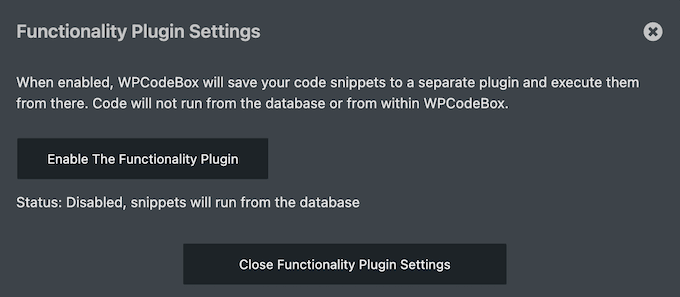
Beyond that, WPCodeBox’s condition builder lets you control exactly where and when each snippet runs. I set up conditions based on post type, user role, and specific page URLs, and while the interface is more complex than WPCode’s conditional logic, it offers finer-grained control that developers will appreciate.
The cloud sync works through API keys. During testing, I created different API keys for different clients so each one only had access to their own snippets, which is a useful security feature for WordPress agencies managing many sites. The catch is that cloud storage is an additional monthly cost ($9/month for 50 snippets or $19/month for unlimited) on top of the plugin license.
The trade-off is that there’s no free version. You’ll need to commit at least $39/year in order to try WPCodeBox, although there’s a 30-day money-back guarantee.
The professional developer interface is also not beginner-friendly. If you just need to paste a Google Analytics code into WordPress, this plugin is complete overkill.
🧑💻 Why I Recommend WPCodeBox: It’s the best choice for professional WordPress developers who want a full IDE inside their dashboard. The Monaco editor with autocomplete and docs on hover, cloud sync across sites, and the option to export snippets as standalone plugins make WPCodeBox the most powerful code management tool on this list.
5. Header Footer Code Manager – Best for Simple Tracking Scripts
| Header Footer Code Manager Pros | ✅ Simplest interface on this list for adding tracking scripts. ✅ User audit logging tracks who added or modified each snippet and when ✅ Device targeting lets you load scripts on mobile or desktop only ✅ Free version handles HTML, CSS, and JavaScript with full page-level targeting |
| Header Footer Code Manager Cons | ❌ PHP code support requires the premium version ($35/year). ❌ No syntax highlighting, code editor, snippet library, or code generators ❌ No cloud sync or cross-site snippet management |
| Pricing | Lite version of HFCM available for free. Pro plans start at $35/year |
| Best For | Site owners who just need to add Google Analytics, Facebook Pixel, or other tracking scripts to specific pages |
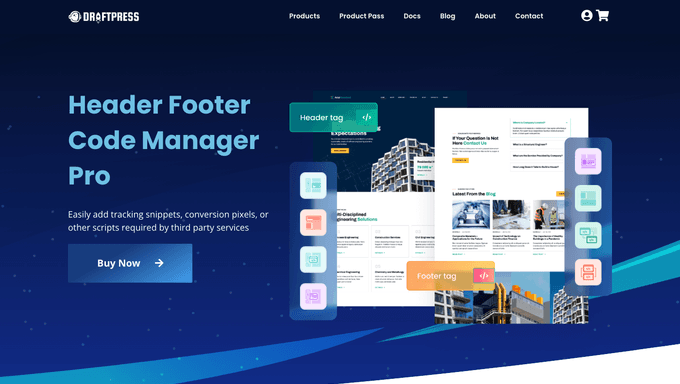
Header Footer Code Manager is a lightweight plugin that makes it easy to add tracking scripts and code snippets to your header, footer, and content areas. With over 600,000 active installations, it’s one of the most popular choices for site owners who just need to paste in a tracking code.
My Experience
Setting up Header Footer Code Manager was refreshingly simple.
The plugin gives you a clean form where you name your snippet, choose the type (HTML, CSS, or JavaScript), pick where it should load, and select which pages it appears on. That’s the entire workflow.
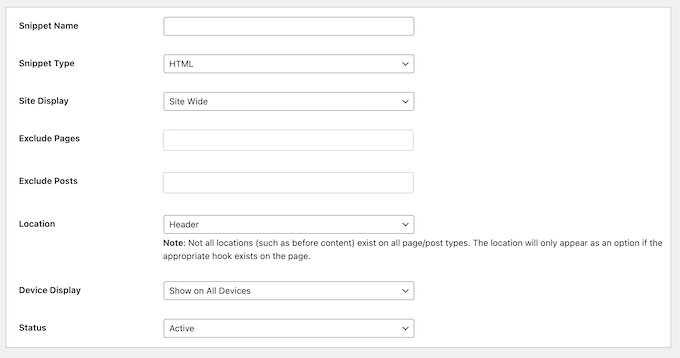
There’s no code editor, no conditional logic builder, and no complicated settings. For someone who just needs to paste a Google Analytics tracking code or a Facebook Pixel into their site’s header, this simplicity is perfect. I had a tracking script running on specific pages within about 60 seconds.
In addition, the page-level targeting options let you choose whether a snippet loads site-wide, on specific posts, specific pages, specific categories, specific tags, or specific custom post types. You can also exclude specific content from loading a snippet.

The device targeting feature was another practical touch. I configured a snippet to load only on mobile devices, which prevents unnecessary tracking scripts from slowing down the desktop experience. This is useful when you want to show your mobile and desktop audiences completely different campaigns.
One thing I really liked about Header Footer Code Manager is the user audit trail. You can see who created each snippet, who last edited it, and when.
For teams where multiple people manage the same site, this accountability is invaluable. You can quickly figure out who added a script that’s causing issues.
The plugin also supports shortcode output, so you can manually place a snippet anywhere in your content using a simple bit of code.
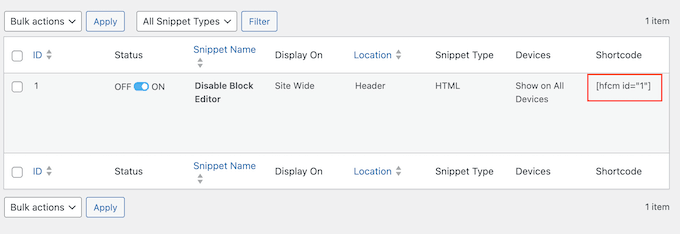
The shortcode approach is more flexible than the automatic placement options when you need pixel-perfect control. In fact, during testing I used this to insert a custom notification banner on a specific post.
I also tested the import and export functionality. I had no problems exporting all my snippets as a file, and then importing them to another site. This is useful for agencies who use the same tracking scripts across multiple client sites, although it’s not as smooth as WPCode’s cloud sync feature.
One frustrating limitation is that the free version doesn’t support PHP snippets. If you need to add custom WordPress functions, hooks, or filters, you’ll need to upgrade to the premium plan, which starts at $35/year.
The plugin also lacks syntax highlighting, which means you’re pasting code into a plain text box. For complex scripts, this makes debugging harder. There’s also no snippet library or code generators either.
Essentially, Header Footer Code Manager is purely a snippet management tool, rather than a development plugin.
🧑💻 Why I Recommend Header Footer Code Manager: This is the best choice if you just need to add tracking scripts, pixels, or simple HTML and CSS to specific pages. It does one job and does it extremely well, with the lightest footprint on this list.
6. Advanced Scripts – Best for Frontend Developers Who Write SCSS
| Advanced Scripts Pros | ✅ SCSS and LESS compilation outputs external minified CSS files ✅ All plans are lifetime licenses with no recurring fees. ✅ Safe Mode catches fatal PHP errors before they crash your site ✅ Zen mode editor provides a distraction-free, full-screen coding environment ✅ Oxygen Builder color palette integration syncs custom styles with global colors |
| Advanced Scripts Cons | ❌ No free version, although a 7-day trial is available ❌ Oxygen Builder integration has no value if you use a different page builder |
| Pricing | $19.99 lifetime (single site). $39.99 lifetime (unlimited sites) |
| Best For | Front-end developers who write SCSS or LESS and want native compilation inside WordPress with lifetime pricing |
Advanced Scripts is a premium code management tool built for front-end developers who need native SCSS and LESS compilation inside WordPress. It takes a performance-first approach by compiling preprocessor code and generating external minified files for the best possible caching.
My Experience
The SCSS compilation was the first feature I tested. If you like using CSS variables and shortcuts to design your site faster, then this feature is the main reason you’d choose Advanced Scripts over the alternatives.
To do this, I wrote a set of SCSS partials with variables, nesting, and mixins.
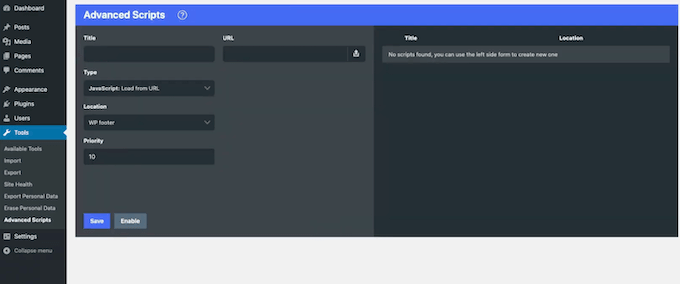
Advanced Scripts compiled everything into a single, minified external CSS file. The compiled CSS is served as a static file, which means browsers can cache it efficiently.
I also tested the LESS support, which works the same way. You write LESS code in the editor, and the plugin compiles it to CSS automatically. The SCSS Partials feature lets you organize your stylesheets into smaller files that get compiled together, which is a best practice for managing complex styling.
The Zen mode editor was a nice surprise during testing. It strips away all the WordPress dashboard navigation, sidebars, and toolbars, giving you a full-screen coding environment.
When you’re writing complex SCSS with multiple partials and variables, that distraction-free space genuinely helps you focus. I found myself preferring it over the regular admin view for longer coding sessions.
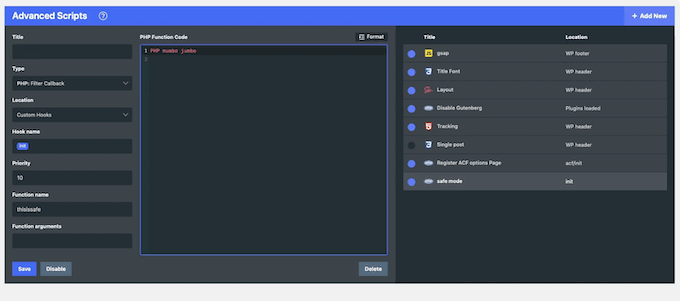
I also tested the conditional execution rules, which let you control which posts or pages load specific scripts.
To do this, I set up a SCSS snippet that only loads on WooCommerce product pages, keeping the styles isolated from the rest of my site. The condition builder is straightforward and covers the common targeting scenarios.
For Oxygen Builder users, the color palette integration is a standout feature. Your global Oxygen colors are available directly inside Advanced Scripts, and your custom SCSS updates automatically if you make any changes to the color palette.
However, this feature is completely irrelevant if you use Elementor, Beaver Builder, or any other page builder.
Going further, the CDN library integration lets you load web fonts and JavaScript libraries without having to register them manually. This allowed me to pull in a Google Font and a JavaScript library from the CDN with just a few clicks.
However, Advanced Scripts does have a smaller community. Plugins like WPCode have thousands of community-contributed snippets and extensive third-party tutorials.
By comparison, Advanced Scripts has very limited community content outside of the official documentation. As a result, you’ll almost certainly have to reach out to their support team if you run into an unusual issue.
🧑💻 Why I Recommend Advanced Scripts: Advanced Scripts is the best choice for front-end developers who write SCSS or LESS and want native compilation inside WordPress.
7. Insert PHP Code Snippet – Best for Embedding PHP in Posts and Pages
| Insert PHP Code Snippet Pros | ✅ Shortcode approach makes it the simplest way to embed dynamic PHP output directly in post content ✅ Multiple placement methods (automatic, on-demand, and shortcode) ✅ Free version covers the core PHP-to-shortcode functionality with no paid upgrade required |
| Insert PHP Code Snippet Cons | ❌ No conditional logic, auto-insert locations, or page-level targeting ❌ Interface is dated with no syntax highlighting or code editor |
| Pricing | Lite version available from WordPress.org. There’s also a premium WP Insert Code Snippet plugin, made by the same developers. |
| Best For | Users who specifically need to run PHP code inside post or page content via shortcodes |
Insert PHP Code Snippet is a streamlined plugin that converts PHP code into WordPress shortcodes that you can place directly in posts, pages, and widgets. With over 90,000 active installations, it’s a popular plugin that’s often praised for its simplicity.
My Experience
Insert PHP Code Snippet is beautifully straightforward. Simply write your PHP code in the snippet editor, save it, and the plugin generates a shortcode.
Then, just paste that shortcode into any post, page, or widget where you want the PHP output to appear.
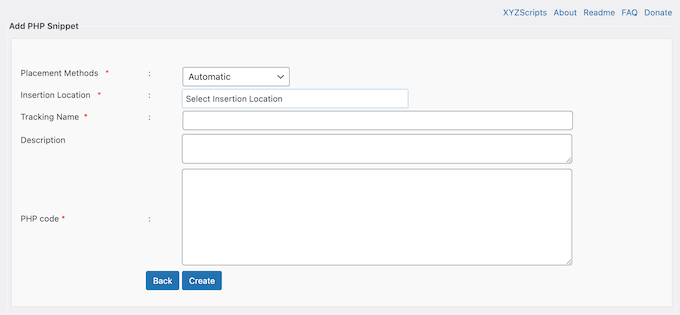
During testing, I created a snippet that queries a custom database table and displays a dynamic pricing table. I pasted the shortcode into a page, and the table rendered perfectly.
The TinyMCE dropdown is also a thoughtful touch. It lists all your snippets in a menu right inside the editor, so you never have to remember or type shortcode names.
While the dropdown is primarily designed for the Classic Editor, you can still insert your snippets via the block editor using the shortcode block. The plugin also added an ‘Execute shortcodes in editors’ setting so you can preview your custom PHP output live inside the Elementor page builder.
This plugin also recently added new placement methods. You can set snippets to run automatically on every page, execute on demand through a trigger, or use the traditional shortcode approach.
During testing, I used the automatic placement to add a site-wide disclaimer footer without editing any template files, and it worked perfectly.
I also tried the exception handling feature, which catches PHP errors within your snippets and sends you an email report. This isn’t as powerful as the safeguards in WPCode and other plugins, which prevent the error from affecting your site entirely. However, it still helps you identify when a snippet is causing problems.
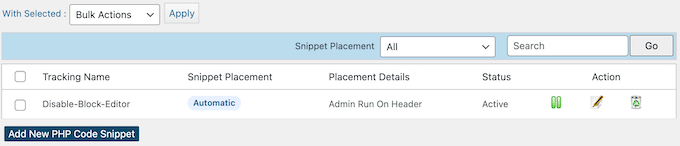
The management screen shows all your snippets in a clean list with the shortcode displayed next to each one. You can activate, deactivate, edit, and delete snippets from this screen. It also supports bulk actions so you can manage multiple snippets at once.
One clear limitation is that the free plugin only handles PHP. If you need to manage CSS, JavaScript, or HTML, you’ll need to upgrade to the premium version or use a different plugin entirely.
The interface is also dated compared to modern alternatives. There’s no syntax highlighting, no code autocomplete, and no error detection in the editor itself.
While this is fine for quick PHP snippets, for anything more complicated I recommend writing the code in a proper editor and then pasting it in.
There’s also no conditional logic or page-level targeting beyond the shortcode approach. If you want to run a snippet on specific pages, then you’ll need to place the shortcode on every single page manually.
Finally, just keep in mind that since this plugin executes PHP directly from your content editors, you should be careful if you allow guest authors or lower-level users to write posts on your site. You wouldn’t want unauthorized users accidentally (or intentionally) running custom PHP code.
🧑💻 Why I Recommend Insert PHP Code Snippet: This is a solid choice when you specifically need to run PHP code inside your post or page content. It’s the simplest solution for that particular use case, and the free version handles it perfectly.
What Is the Best WordPress Code Snippets Plugin?
Every website and project is unique, so the ‘best’ code snippets plugin for you will vary, depending on your specific needs. However, after testing the top options on the market, I’d recommend WPCode for most users.
For me, what sets WPCode apart is its Snippet Library, which features 3,000+ ready-to-use snippets covering everything from disabling comments, right through to adding Google Analytics. Instead of searching the web for code, you can find what you need right inside your WordPress dashboard or use WPCode’s powerful AI code generator.
If you don’t want to use WPCode, then there’s a few other options I’d recommend for specific use cases:
- If you’re worried about breaking your site, Code Snippets is the safest option. Its Safe Mode feature is the most reliable crash protection I’ve tested. It also uses a clean, familiar interface that looks just like the standard WordPress ‘Plugins’ page, making it very easy to manage, activate, and deactivate individual pieces of code.
- If you’re a marketer who also manages ads, Woody Code Snippets handles both custom code and AdSense placements from one interface. You can create a snippet for your ad code and use Woody to automatically place those ads at the beginning, middle, or end of your posts.
- If you’re a professional developer, WPCodeBox gives you a full IDE experience with the Monaco editor and SCSS compilation. It uses the same engine as VS Code, providing professional-grade auto-complete and syntax highlighting.
FAQs About WordPress Code Snippets Plugins
What is a code snippets plugin and why do I need one?
A code snippets plugin gives you a safe way to add custom code to your WordPress site without editing your theme’s functions.php file.
It stores your code separately from your WordPress theme, so you can update or even change your theme without losing your custom code. Most also include error detection that catches mistakes before they crash your site.
Will a code snippets plugin slow down my WordPress site?
Most modern code snippets plugins have minimal impact on your site’s performance. Some plugins like Code Snippets even offer file-based execution that bypasses database queries entirely.
Just be aware that the snippets themselves can affect speed if they contain inefficient code.
Can I use multiple code snippet plugins at the same time?
Technically yes, but it’s not recommended. Running multiple snippet plugins can lead to conflicts and debugging headaches.
Instead, I recommend picking the best plugin for you, and using it consistently.
What happens to my code snippets if I deactivate the plugin?
Typically, your custom code stops running straight away, but your snippets aren’t deleted. They stay in the database and you can restore them at any point, by reactivating your code snippets plugin.
WPCodeBox can also export snippets as standalone plugins that run independently.
Is it safe to add PHP code snippets as a beginner?
Yes, as long as you use a plugin with proper error handling. Both WPCode and Code Snippets catch fatal errors before they crash your site.
You can also enable WordPress debug mode to troubleshoot issues. That said, I still recommend testing new snippets on a staging site first, especially if you’re making significant changes.
Do code snippets plugins work with page builders like Elementor?
Yes, most code snippets plugins work alongside popular page builders without conflict. Insert PHP Code Snippet even added an ‘Execute shortcodes in editors’ option especially for Elementor.
What is the best free WordPress code snippets plugin?
WPCode Lite is the best free option because it supports PHP, JavaScript, CSS, HTML, and text snippets with no paid upgrade required.
Code Snippets is a close second if you only need PHP and want the strongest crash protection.
More Guides for Managing Custom Code in WordPress
- How to Disable XML-RPC in WordPress
- How to Disable REST API in WordPress
- How to Fix Fatal Error: Maximum Execution Time Exceeded
- How to Create a Site-Specific WordPress Plugin
If you liked this article, then please subscribe to our YouTube Channel for WordPress video tutorials. You can also find us on Twitter and Facebook.
The post 7 Best WordPress Code Snippets Plugins (I Tested Them All) first appeared on WPBeginner.


No comments:
Post a Comment